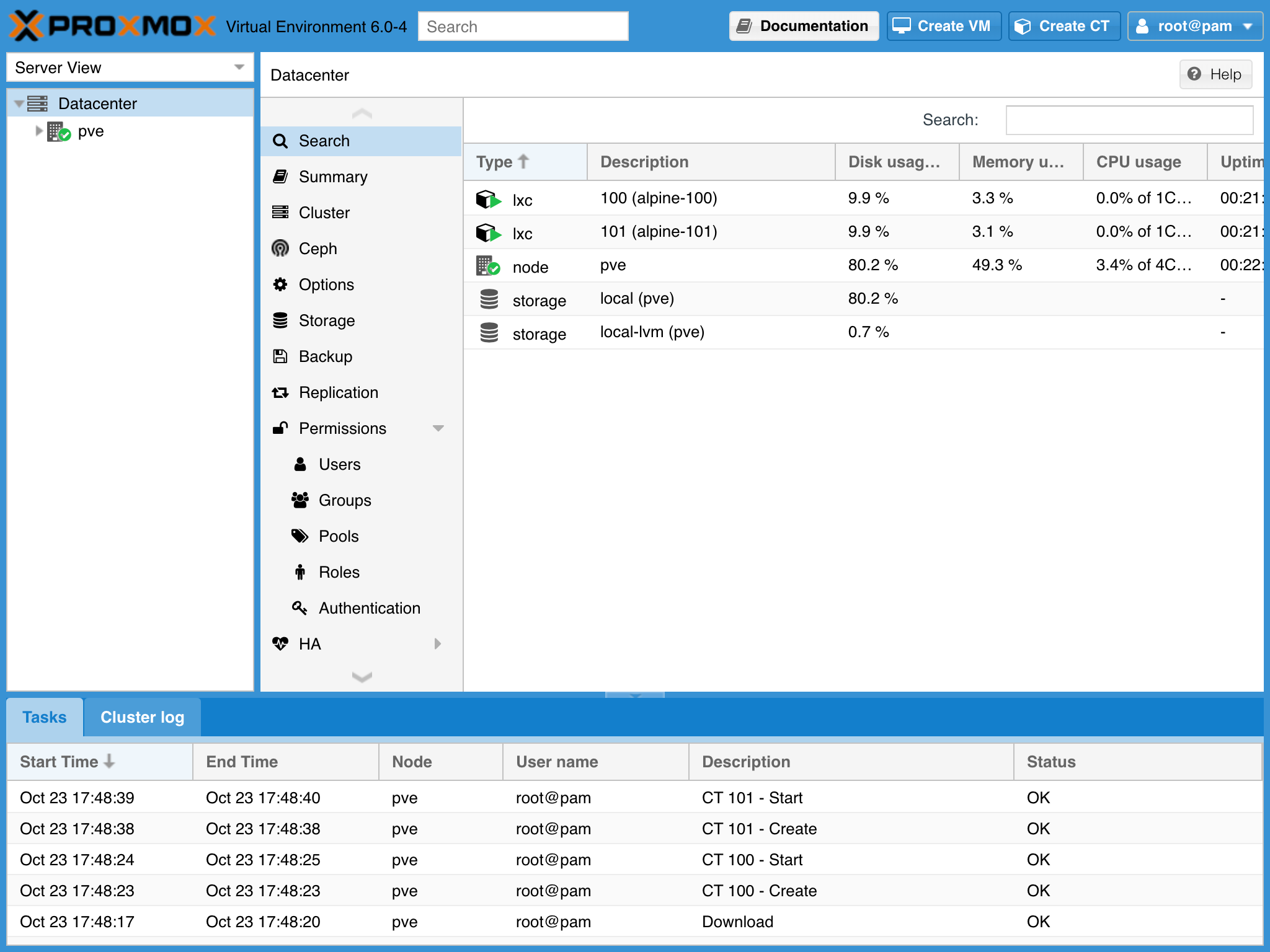
In this tutorial, we’ll change the theme of Proxmox VE 6.0. There are six themes you can choose from (in the image below from top left to bottom right):
theme-aria theme-classic theme-crisp (default theme) theme-gray theme-neptune theme-triton Prepare Ensure you have a server running Proxmox VE 6.0. Then, ensure you have followed the steps in our previous article on making customizations to Proxmox VE 6.0 persistent across upgrades.
Note: If logged in as root on your Proxmox VE host, omit the sudo part of the commands below.
This tutorial will guide you through the steps required to replace the logo, favicon, and boot screen (as seen in the console when booting a virtual machine) on Proxmox VE 6.0. Another customization for our directory of customizations! This article builds on a previous article on persistent customizations to Proxmox VE.
If you find Proxmox VE useful, consider getting a subscription.
If you don’t have a computer to run Proxmox VE on yet, I can recommend running it on a low-power Intel NUC or three.
Building on our last article, we’ll make the Proxmox VE 6.0 subscription warning dialog disappear when logging in to the web interface.
If you find Proxmox VE useful, you should consider getting a subscription to this great product. You’ll get support and more stable packages with one.
Note: Please be careful when trying this out! I can’t guarantee that it’ll work properly!
Preparation First, you’ll need a computer or two to install Proxmox VE.
This time, we’ll make customizations to Proxmox VE permanent across upgrades to the system. We’ll create a hook for apt, the package manager used by Proxmox VE, that executes a script reapplying the customizations. I use a similar solution to make various customizations and changes to Proxmox VE running on low-power Intel NUC nodes persist.
Note: If you are logged in as root (I think you should be logged in as another user), leave out sudo in the commands below.
Proxmox VE 6.0 is an incredible virtualization platform that works great on everything from low-power computers like the Intel NUC to Threadripper PRO workstations and massive AMD EPYC-based servers with up to 128 cores, 256 threads, and 4TB RAM. And Proxmox VE is free, too!
However, it uses enterprise subscription-only repositories by default and won’t allow you to install upgrade packages without a subscription. Instead, this article will show you how to use free, no-subscription repositories.
This tutorial will show you how to easily remove the desktop interface from your NVIDIA Jetson Nano Developer Kit to run it in headless mode. This can be useful for using the NVIDIA Jetson Nano as a small, low-power server with machine-learning capabilities.
The NVIDIA Jetson Nano is a mighty little single-board computer with a Quad Core ARM64 CPU, 4GB LPDDR4 RAM, and a 128-core NVIDIA Tegra (Maxwell-based) GPU, all while using as little as 5 watts.