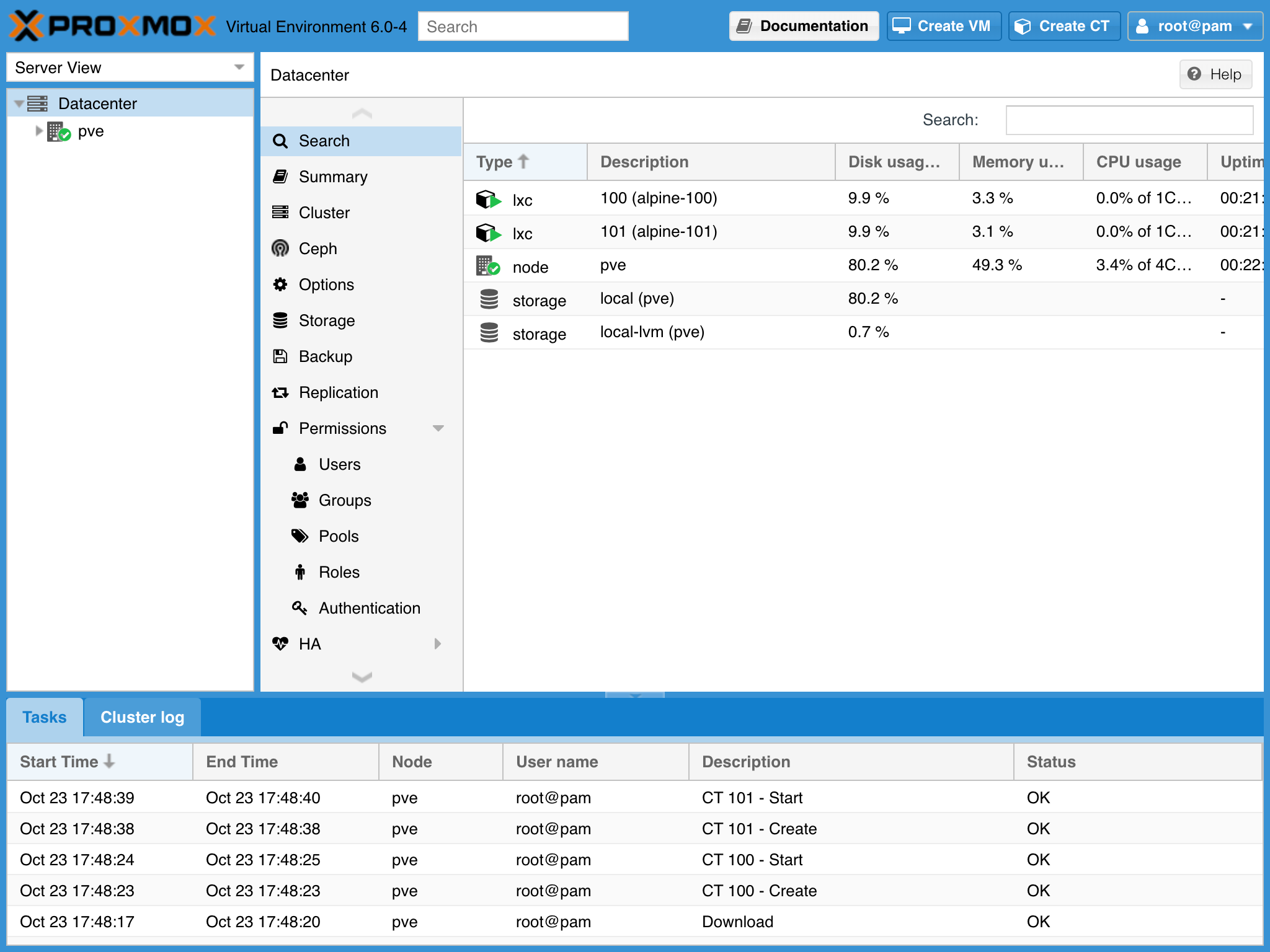
This post is a collection of articles and tutorials on customizing the look and feel of Proxmox VE 6.0. It will be added to in the coming weeks and months as I find other areas of possible customization. Start with the first article, and proceed to whichever customization you want. I use most of these on my three-node Intel NUC Proxmox VE cluster.
Make Customizations to Proxmox VE 6.0 Persistent Use Free, No-Subscription Repositories on Proxmox VE 6.
This tutorial will show how to run Proxmox VE 6.0 using Vagrant. Vagrant is a tool for building and managing virtual machine environments and is especially useful for development and testing. Vagrant runs on everything from the Raspberry Pi to gaming laptops and the MacBook Air. We’ll also use Packer to build the Proxmox VE 6.0 Vagrant box.
This tutorial assumes you have a working installation of macOS or Ubuntu running on a client computer and that you have VirtualBox or libvirt installed.
In this tutorial, we’ll install LXD, configure our system to run LXC containers, and initialize LXD on Alpine Linux. It should work on all platforms where LXD/LXC is supported (x86_64, ARM64, and more).
Alpine Linux is “an independent, non-commercial, general purpose Linux distribution designed for power users who appreciate security, simplicity and resource efficiency.” It’s incredibly lightweight and useful for containers and virtual machines as both a host and a guest.
This tutorial will show you how to install a virtualization stack consisting of KVM, QEMU and libvirt on Alpine Linux, with support for both AMD64 and ARM64 based computers.
Alpine Linux is “an independent, non-commercial, general purpose Linux distribution designed for power users who appreciate security, simplicity and resource efficiency.” It’s incredibly lightweight and is useful for both containers and virtual machines, as both host and guest. Due to its small size, it’s able to run on everything from MicroServers to Threadripper PRO-based workstations.
In this tutorial, we’ll change the theme of Proxmox VE 6.0. There are six themes you can choose from (in the image below from top left to bottom right):
theme-aria theme-classic theme-crisp (default theme) theme-gray theme-neptune theme-triton Prepare Ensure you have a server running Proxmox VE 6.0. Then, ensure you have followed the steps in our previous article on making customizations to Proxmox VE 6.0 persistent across upgrades.
Note: If logged in as root on your Proxmox VE host, omit the sudo part of the commands below.
This tutorial will guide you through the steps required to replace the logo, favicon, and boot screen (as seen in the console when booting a virtual machine) on Proxmox VE 6.0. Another customization for our directory of customizations! This article builds on a previous article on persistent customizations to Proxmox VE.
If you find Proxmox VE useful, consider getting a subscription.
If you don’t have a computer to run Proxmox VE on yet, I can recommend running it on a low-power Intel NUC or three.